


The first rule of prompt crafting is to clearly identify the main subject of your image. Nano Banana (like other AI image models) responds best when you tell it exactly who or what should be in the scene. A vague prompt like “a design for a poster” might yield something generic. Instead, zero in on the subject and give any necessary detail. This ensures the AI knows what to focus on.
- Why it matters: In digital products such as printable wall art or planner covers, there’s usually a central motif or object. Being specific about this subject helps Nano Banana generate a coherent image rather than a random mash-up. Google’s own team suggests including a clear subject in your prompt as a key element for best results.
- How to do it: Mention the subject and even a brief description. For example, if you’re designing wall art featuring a cat, your prompt could start with “a tabby cat” rather than just “a cat”. If relevant, add an action or positioning: “a tabby cat sitting on a windowsill”. These specifics guide the AI on exactly what you envision.
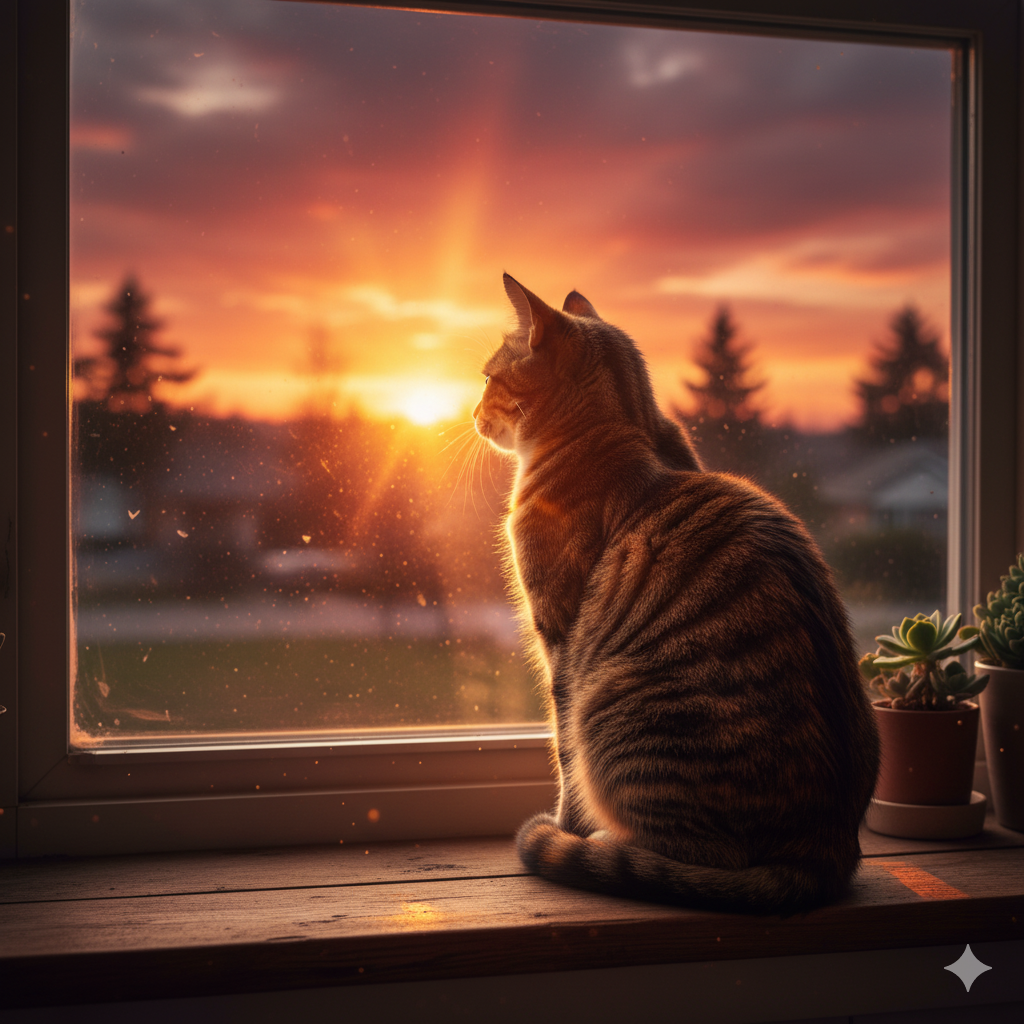
Example Prompt: “A tabby cat sitting on a windowsill, looking out at sunset.”
Expected Output: An image focusing on a cat (brown-striped tabby) perched on a window ledge, with warm sunset light. The cat will be the clear subject, since we explicitly described it and its simple action. You can further expect the outside to have sunset colors. By contrast, if we had just said “cat at sunset,” the model might not have placed the cat in a window or made it the main focal point. Being specific about who (the cat) and where (on a windowsill) yields a more usable, well-composed graphic.
Here’s what Nano Banana generated:
 Pro Tip: You can also specify composition or perspective along with your subject. For instance, “top-down view of a tabby cat sleeping on a windowsill” would give a flat lay look (helpful if you need a planner page illustration with a certain angle). Don’t be afraid to add these details once you know your main subject. Nano Banana can handle multi-part instructions well when they’re clearly stated.
Once your subject is defined, the next step is to paint a picture with words – literally. Nano Banana responds to style and mood descriptors, so the adjectives you choose will heavily influence the look and feel of the output. For digital product designs, this is gold: you can tailor the art style to match your product’s vibe or your brand’s aesthetic by simply tweaking the prompt wording.
- Why it matters: Think about the end use of your image. Is it a cozy printable quote for a nursery? A bold and modern planner cover? The adjectives you include (like “cozy pastel watercolor” vs. “bold vibrant graphic”) will push the AI toward that style. Prompt wording affects output style dramatically. For example, adding “bright and whimsical” will yield a very different image than “dark and moody”.
- How to do it: Include 2–3 adjectives that convey the mood, color scheme, or artistic quality you want. You can describe lighting (e.g., “warm, soft lighting”), color tone (“pastel pink and mint”), or artistic traits (“highly detailed, intricate”). Nano Banana is advanced enough to handle nuanced descriptions, so feel free to get creative. Want a dreamy look? Add “ethereal”. Want something minimalistic? Use “clean, simple design”. These words will guide the model’s “artistic direction” for the image.
Example Prompt: “A tabby cat sitting on a windowsill at sunset, in a cozy, soft watercolor style, with warm golden light.”
Expected Output: The core scene (cat on window at sunset) would now be rendered as a watercolor-like image with soft, diffuse lighting and a cozy atmosphere. Because we said “watercolor style” and “warm golden light”, Nano Banana should produce an output that looks more like a painted illustration, with gentle colors and possibly visible brushstroke textures, rather than a photo-realistic cat. The mood will feel warm and comforting – perfect for something like nursery wall art or a calming planner cover.
Let’s see the result:
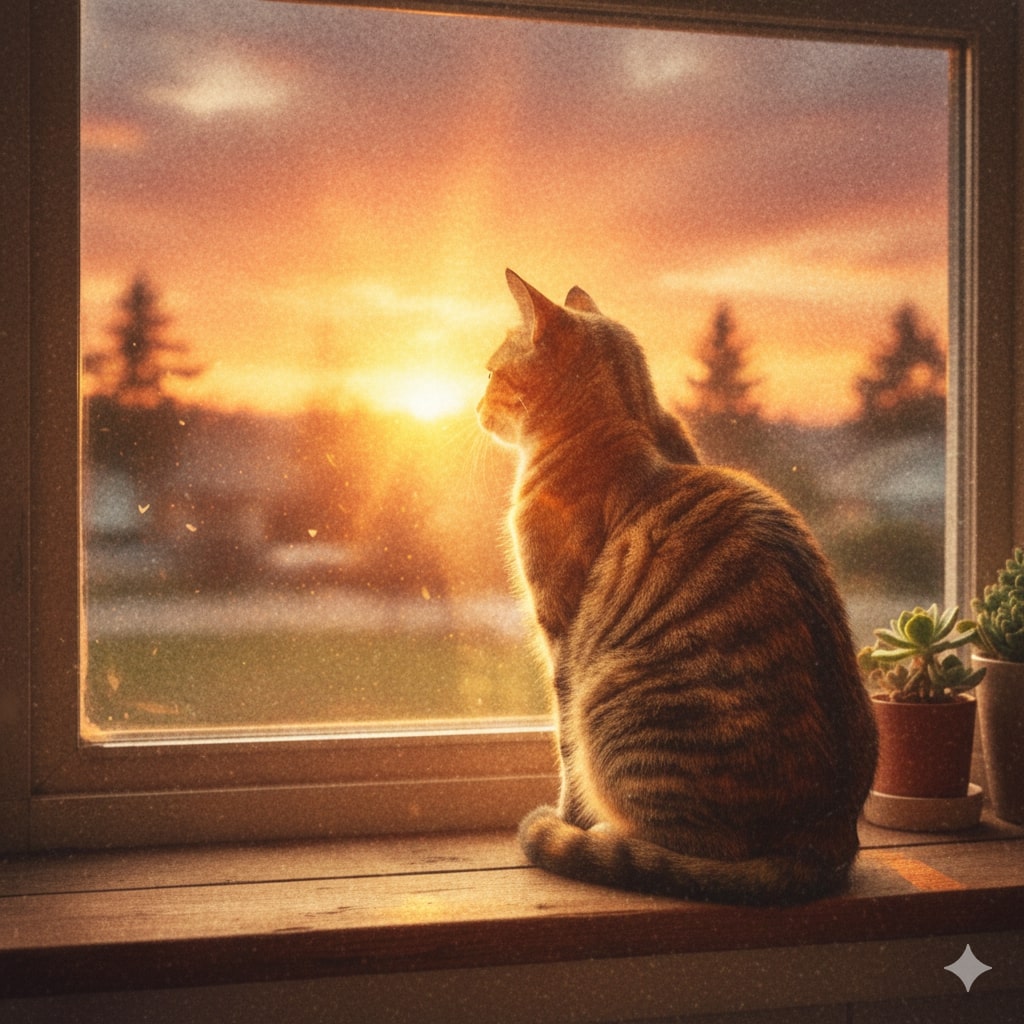 Notice the difference? Small changes in adjectives completely change the output, as demonstrated by the output above. If we had described the style as “bold, high-contrast graphic with neon colors”, the cat image would come out in a vivid, modern art style.
Nano Banana can handle a wide range of styles, from photorealistic to cartoonish to retro, as long as you specify them in the prompt. In fact, it can even emulate historical or film aesthetics if you mention them – for example, “a portrait in 1980s retro poster style, grainy and high-contrast” could make your image look like it’s straight from the 80s, complete with film grain and saturated colors. Nano Banana is known for recreating such era-specific looks remarkably well.
In many cases, especially for things like planner dividers, book interiors or template backgrounds, you might want more than just a single object floating on a blank background. Context – the setting or background of the image – can make a design more interesting and tailored to your theme. With Nano Banana, you can simply say what else you want in the scene, and it will blend it in. This model is particularly good at maintaining coherence when you introduce multiple elements or a specific setting.
- Why it matters: Including background elements or a setting in your prompt helps ensure the AI doesn’t give you an isolated object (unless that’s what you want). For example, a KDP interior page might benefit from a subtle background pattern or scene, not just a character. If you’re creating a recipe planner page, you might want a faint kitchen scene behind the main content. By mentioning context in the prompt, you can get an image that already has that environment integrated, saving you time in editing.
- How to do it: After describing the subject and style, add phrases for any specific elements or environment you envision. This could be as simple as a location (“in a rustic kitchen”, “in a magical forest”) or particular background items (“with cactus plants around it”, “standing under fairy lights”, etc.). Nano Banana’s understanding of spatial relationships is very strong. It can “fuse” a subject into a scene quite naturally. So if you mention something like “with mountains in the distance and wildflowers in the foreground,” the model will attempt to include those while keeping the main subject intact.
Example Prompt: “A tabby cat sitting on a windowsill at sunset in a cozy watercolor style, looking out at a garden with fireflies.”
Expected Output: Now we’ve added “garden with fireflies” as context. The resulting image would still focus on the cat on the windowsill, but you’ll likely see a gentle garden scene outside the window. The output should include silhouettes of plants or flowers and little glowing fireflies dotting the twilight. The prompt paints a more complete picture, and Nano Banana will strive to deliver that. The fireflies detail, for instance, should add tiny specks of light in the scene, enhancing the magical, serene mood.
This is what the prompt generated:
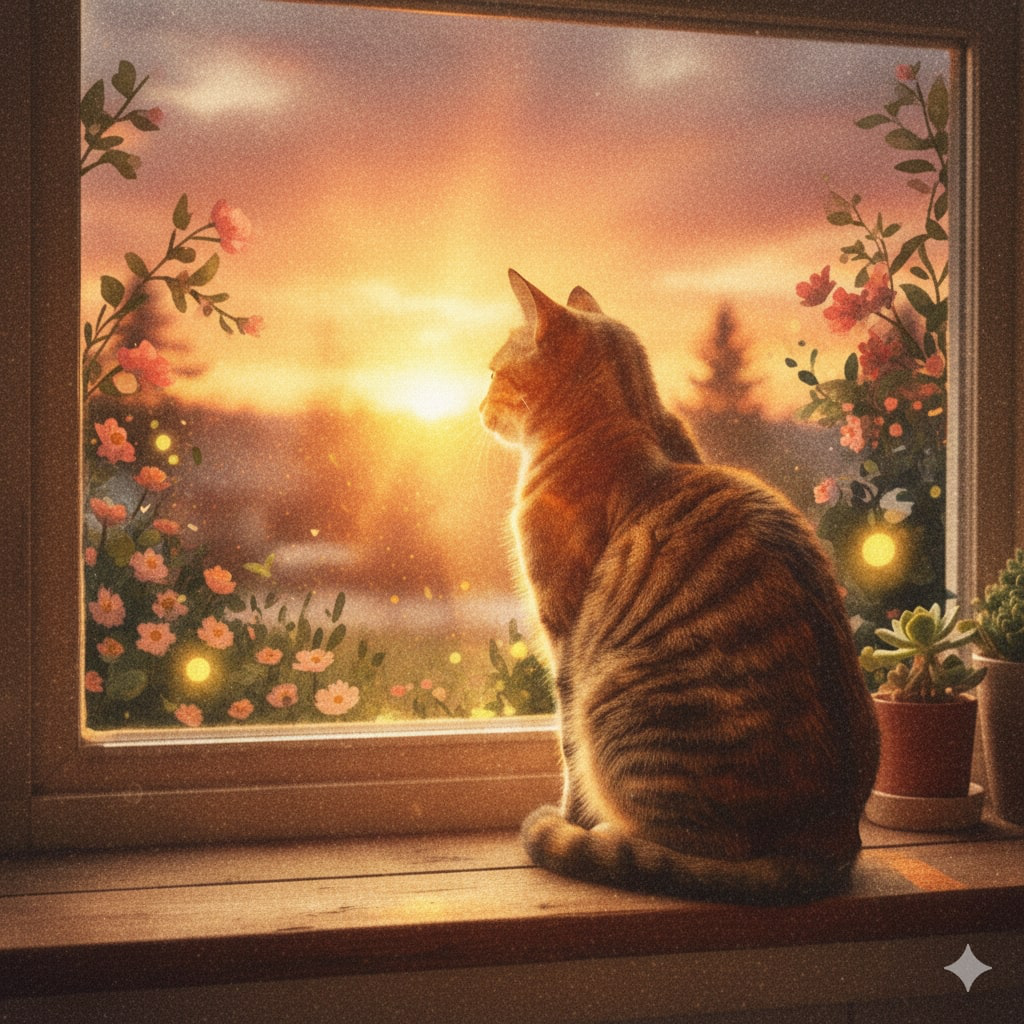 There you have it. With context details in the prompt, the output is much better.
Do notice how the prompt is becoming a bit long as we add detail – that’s okay! Nano Banana can handle multi-part prompts well, especially when you separate ideas with clear terms (and the word “with” or commas). It’s often capable of merging disparate elements seamlessly (one of its key strengths is blending multiple concepts into one image).
If you want something in the background or a certain prop included, just mention it. Including elements like location and even specific objects in your prompt will help the model “add them seamlessly” to the image. For instance, if you want a vintage car in the background or neon signboards overhead, say so. You’ll be amazed at how Nano Banana weaves it in!
Pro Tip: Don’t overload a single prompt with too many unrelated elements, as it might confuse the composition. Stick to a coherent scene. If you find the image is getting too busy or something random appears, you can remove or simplify some context in the prompt.
One of the most fun aspects of using Nano Banana is tapping into specific art styles or references. Beyond basic adjectives, you can instruct the model to mimic the look of certain mediums (like oil painting, pencil sketch, 3D render) or even the aesthetic of a time period or genre (retro 70s, futuristic cyberpunk, film noir, etc.). This is especially useful for digital product sellers because it allows you to create on-trend or niche designs that resonate with particular audiences. Need a mid-century vintage look for a printable? Or a manga-style character for a journal? Just prompt it!
- Why it matters: Styles and mediums carry emotional and cultural connotations. A “pencil sketch” style might be perfect for coloring book interiors or printable coloring pages (the output will have line-art qualities). A “chalkboard drawing” style could make a great kitchen printable recipe card. By naming the medium or style, you essentially tell Nano Banana to apply a filter on the image generation that matches that technique. The model has been trained on countless images and can reproduce many distinct looks when asked.
- How to do it: Include the style or medium as a phrase in your prompt, usually at the end. Some examples: “… in the style of a vintage travel poster”, “… as a flat vector illustration”, “… like a comic book panel”. You don’t need to reference specific artists (and in some cases the AI won’t allow certain names), but you can use generic terms or well-known genre descriptors. Nano Banana is quite savvy with these. For instance, telling it “90s anime style” will likely produce an image reminiscent of 1990s anime drawings. Telling it “photorealistic 3D render” will push it towards a CGI look. These keywords greatly influence texture, lighting, and detail level.
Example Prompt: “A tabby cat sitting on a windowsill, looking out at a garden with fireflies, drawn in a classic children’s book illustration style.”
Expected Output: The result would resemble a storybook illustration of our scene: likely a bit simplified, with gentle lines and a whimsical touch, as if it came out of a classic children’s story. The colors might be soft and the features slightly exaggerated or outlined, mimicking the hand-drawn quality you’d see in children’s book art. This could be ideal for a printable bedtime story graphic or a kids’ room wall art print.
And the output:
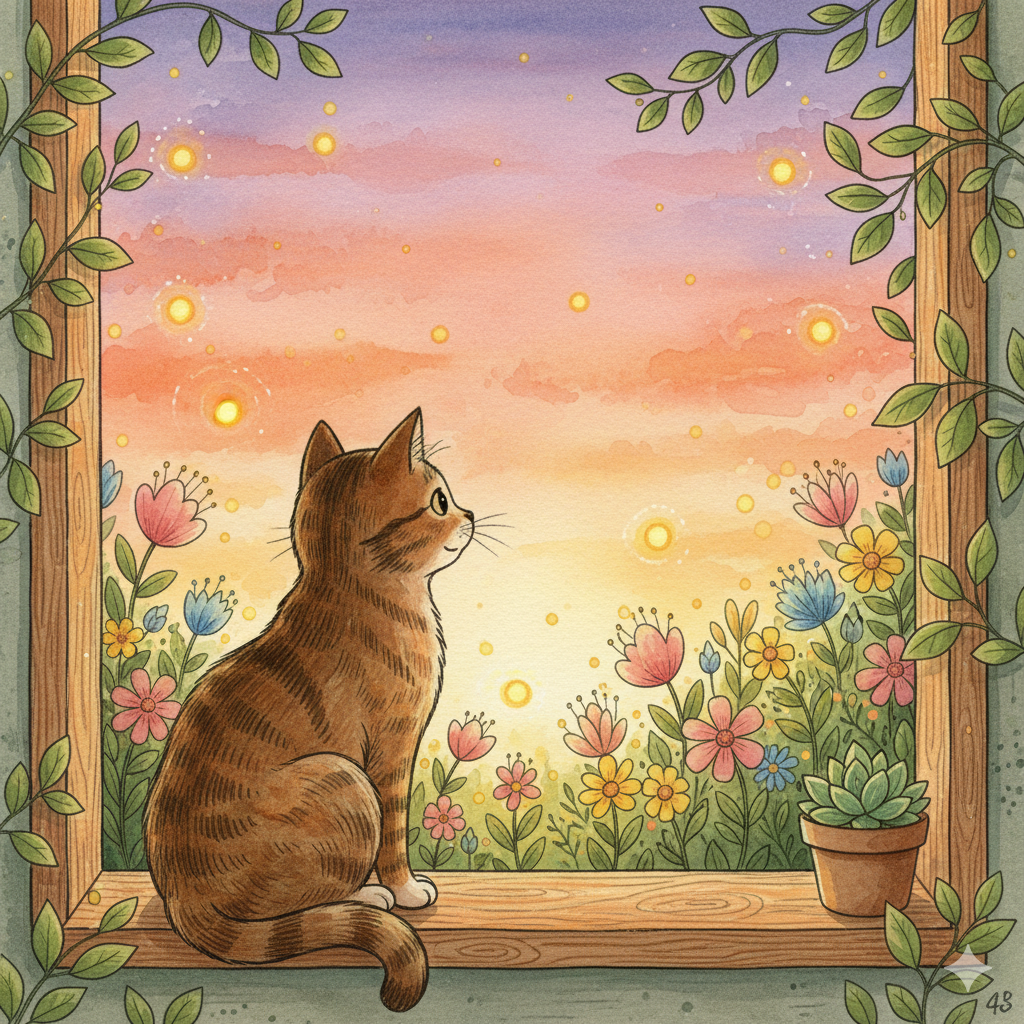 A perfect demonstration of how Nano Banana can generate multiple art styles with great accuracy!
Let’s say instead we tried: “… as a 1970s retro poster, grainy film texture”. Nano Banana would then produce the cat/window scene with a vintage color palette (muted oranges, browns, grainy overlay, etc.), truly making it look like it’s an old poster. That kind of output might appeal for a niche decor style or a trendy retro-themed planner. The ability to recreate historical art vibes or analog textures is something Nano Banana excels at.
Don’t hesitate to mash up styles and subjects in creative ways. For example, “a unicorn in the style of a Picasso painting” or “a space rover illustrated as a children’s coloring page.” These might sound wild, but such inventive prompts can yield unique product designs that set your shop apart.


Leave a Reply