


Before we start creating our bundle listing, we need to set up a folder for it. Go to the Listings tab, and on the top-left corner, you’ll see the folder/sub-folder you’re in. Click on it and create a new folder.
Give it a name you can easily recognize, like “Digital Bundle (PNGs)” and under Template Type, select Saved Templates and choose Digital Bundles (6 Files).
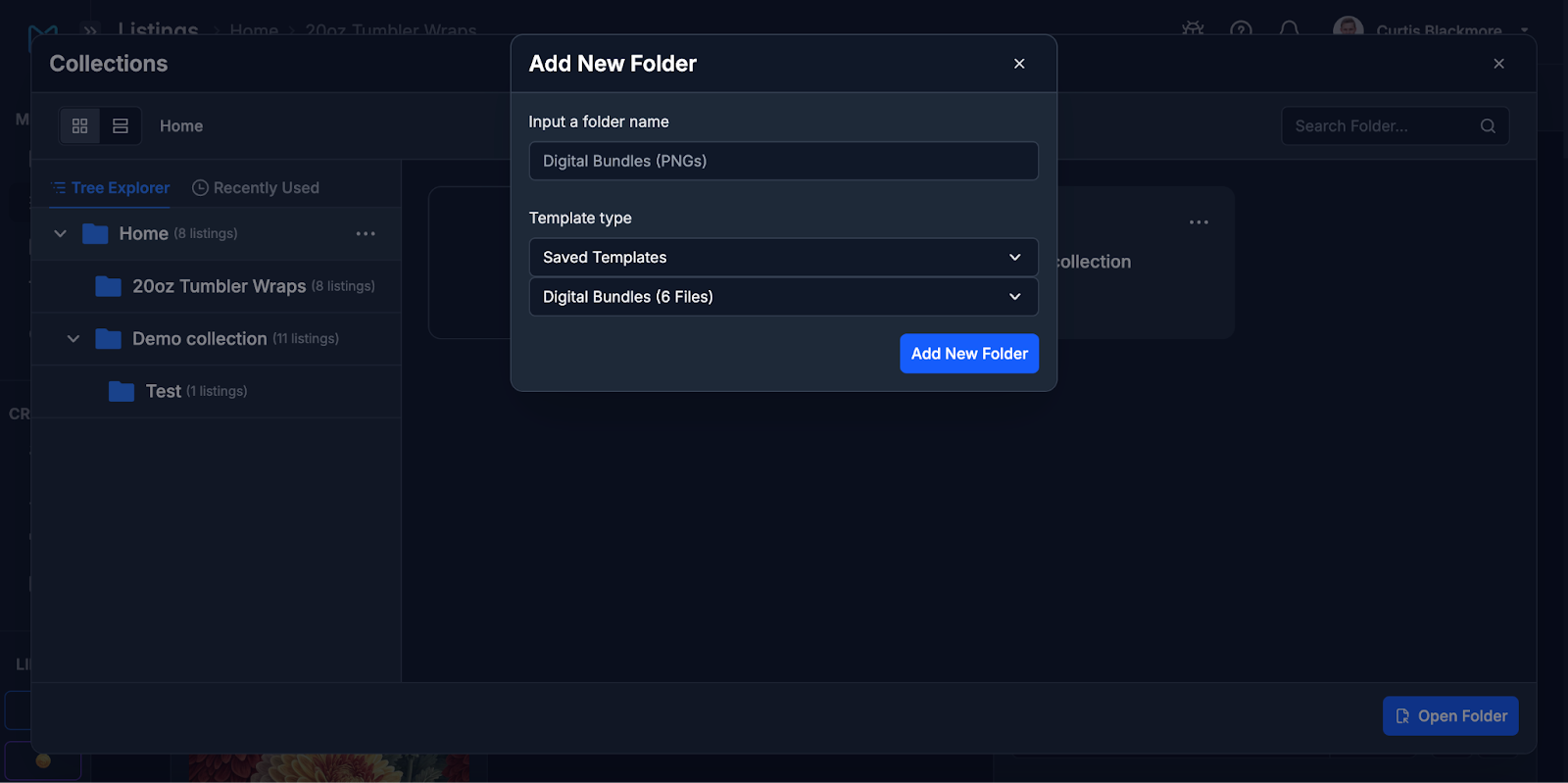 Save the folder, and open it. That’s it, we’re set up!
The next step is to create designs for your listing. MyDesigns makes it simple to bring your bundle ideas to life. Whether you’re starting from scratch with AI-generated designs or uploading existing artwork from your library, MyDesigns suite of tools help you get your designs production-ready quickly.
Generating Designs with Dream AI
Dream AI is your creative partner, turning text prompts into beautiful, unique designs in seconds. Perfect for making eye-catching assets for your bundles!
- Navigate to the Dream AI section in MyDesigns.

- Choose your preferred AI image generation model, and the image generation settings you want to go with. In the video, I chose Ideogram v3 with the following settings.

- Write a detailed prompt describing exactly what you want. Read our article on how to use AI to generate designs for digital products for more details. Here’s the prompt I used in the video: “A black and white logo illustration of a bulldog’s head with a tilted upward pose, snarling determinedly with visible teeth and deep face wrinkles, wearing a spiked collar, in a graphic, high-contrast style with sharp lines, against a white background.”
- Generate your images and save them to your collection.
Uploading Existing Designs
If you already have great designs, getting them into MyDesigns is a breeze.
- Head to the folder you created on the Listings page.
- Click Upload in the top-right corner and select Upload Files to a Single Listing option.
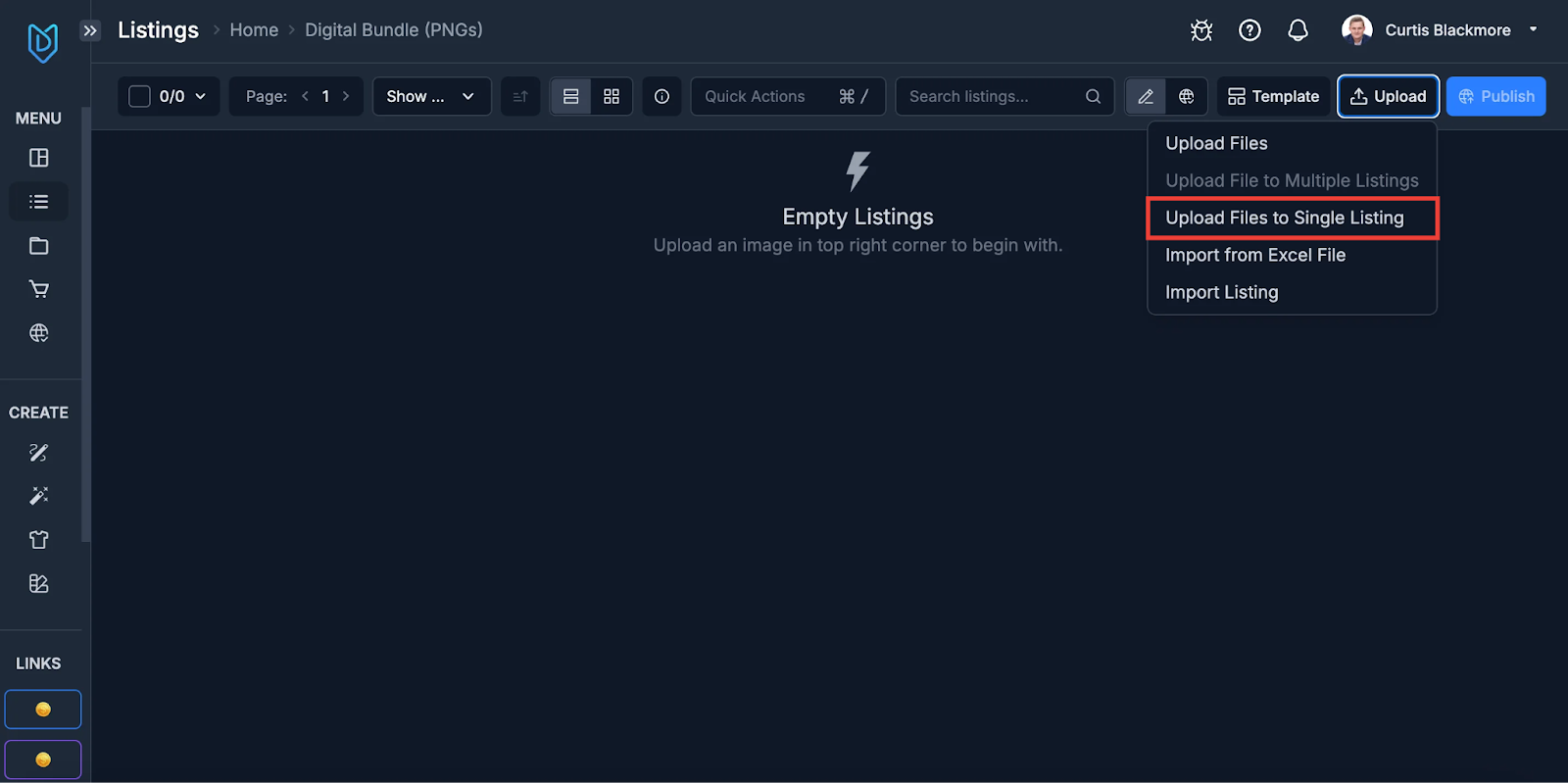
- Select the designs you want to upload from your device.
Now, the design part of your listing is complete.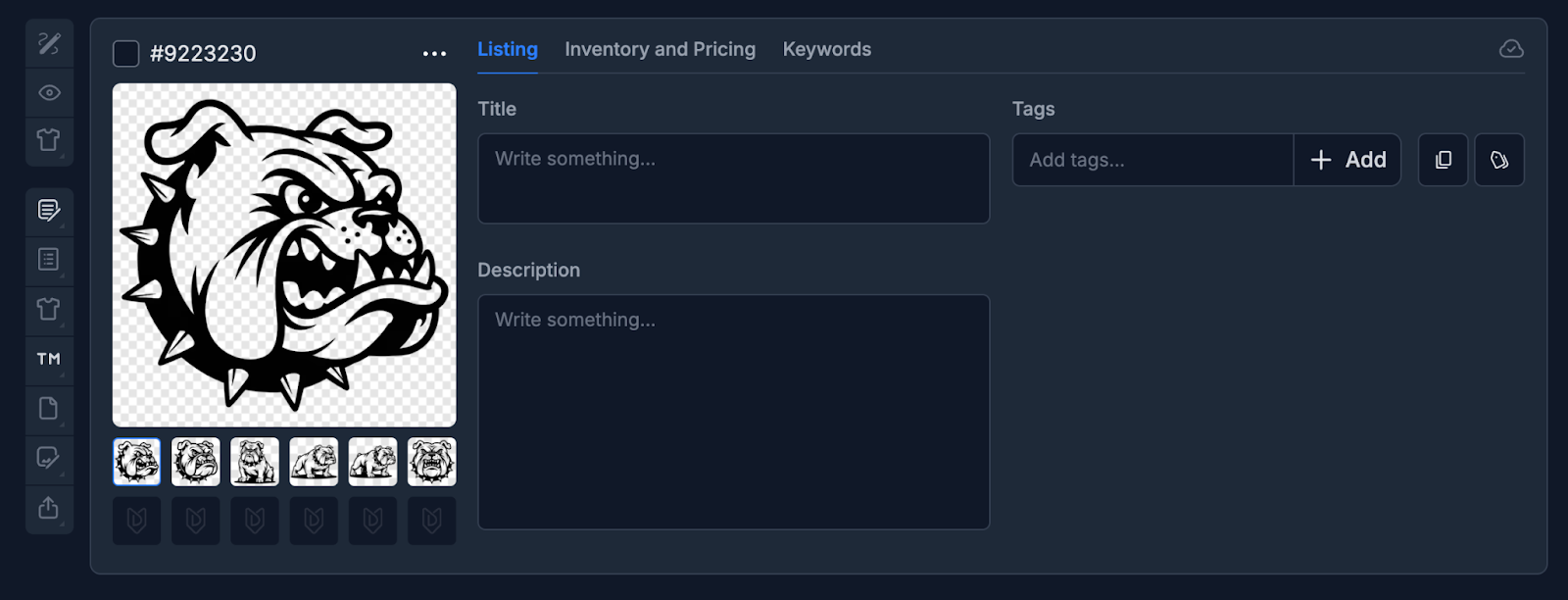
Remember, you can create and manage multiple listings at a time with MyDesigns. Our platform is designed to support bulk processes to save you time.
Now it’s time to generate mockups. When selling digital products, great visuals are everything. Since customers can’t physically hold your product, your mockups need to convince them it’s worth clicking “Buy.”
Creating Bundle Mockups
Bundle mockups show off everything included in your package at a glance, helping buyers instantly see the value. I have already created mockup profiles for digital bundles for you, so that eliminates one big part of the mockup process.
- On the Listings page, select the listing(s) you want to proceed with.
- Go to Mockups → Image Mockups.
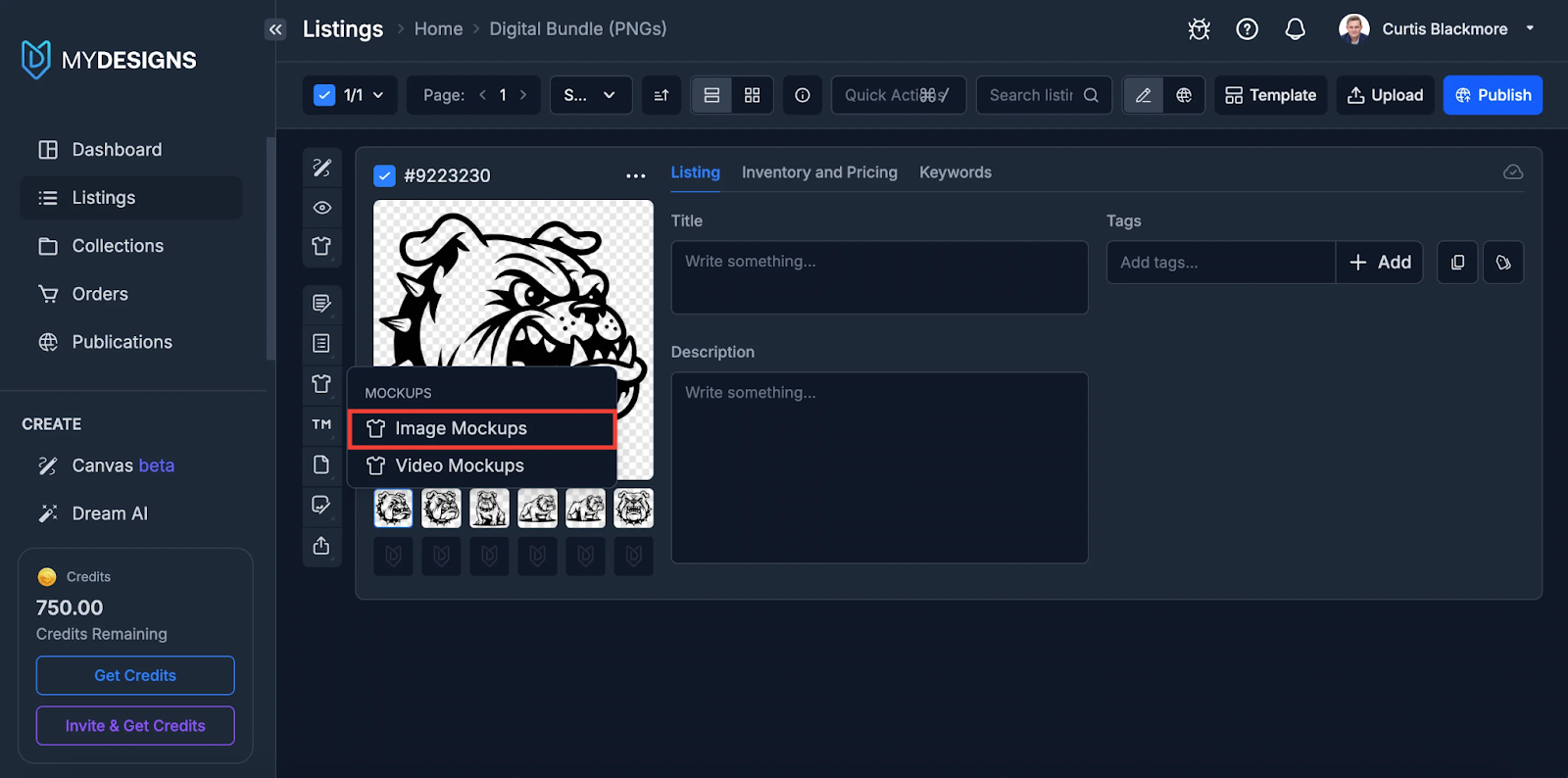
- Under Load Profile (top-right corner), go to Public Profiles and choose Digital Bundles (set of 6). This will automatically apply the mockup settings I preset for you.
- Click Generate Mockups. The system will automatically place your designs into a pre-made mockup template.
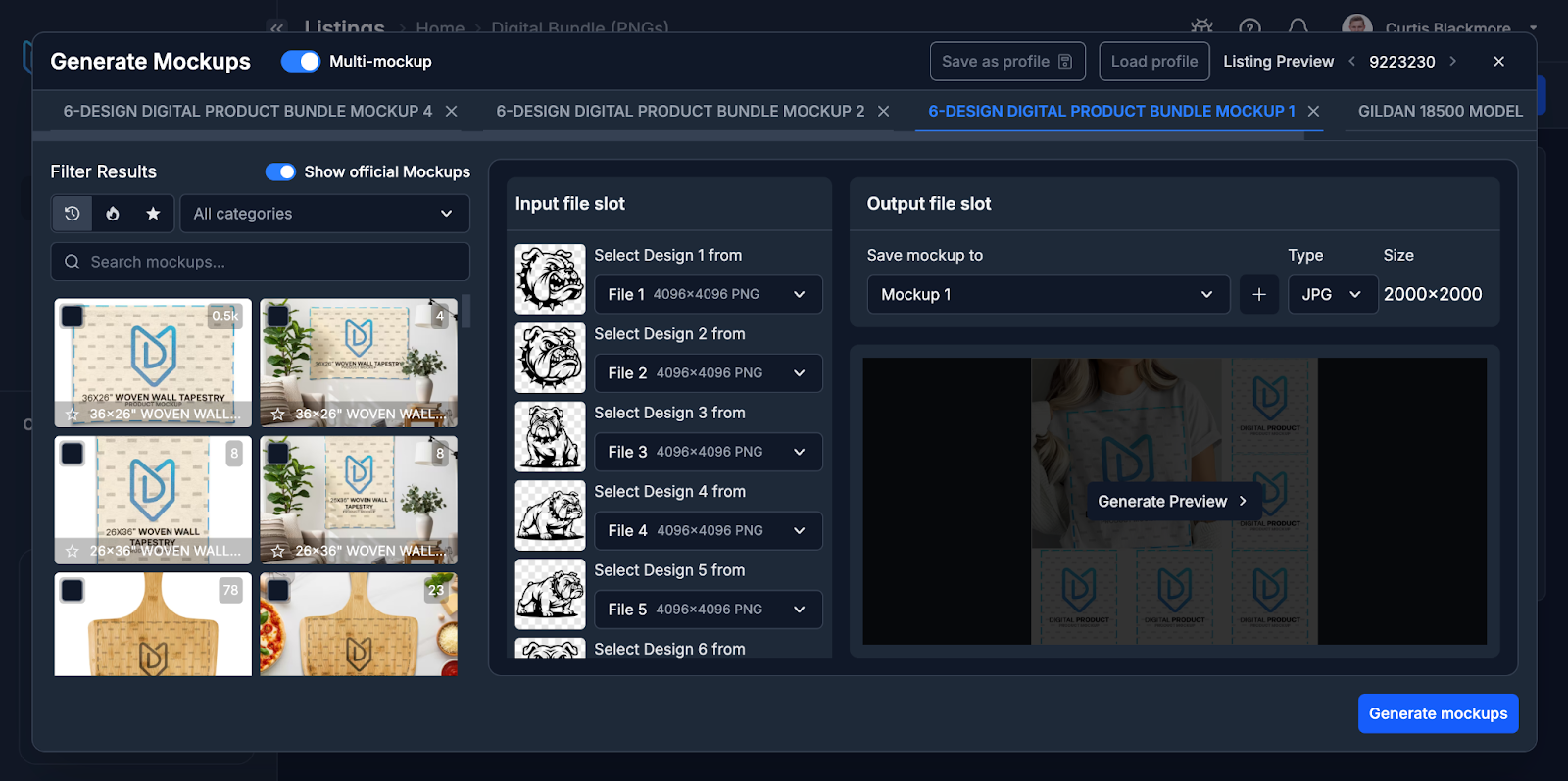
Now that you’re done with the image mockups, let’s create a video mockup to make your listing more powerful.
Creating Video Mockups
A short video can make your listing stand out in Etsy search results and grab scrolling shoppers’ attention.
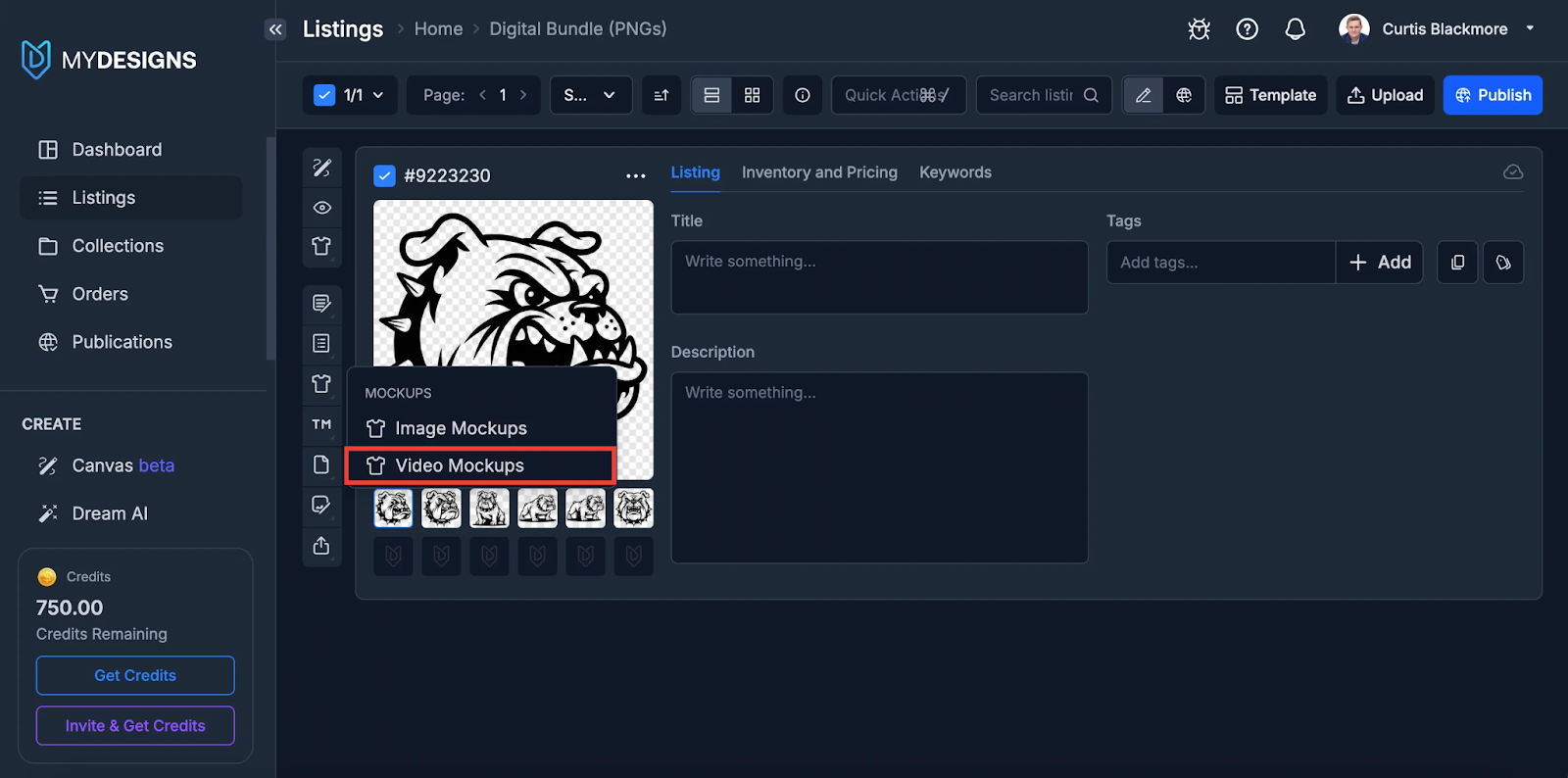
- In the Mockup Generator, select “Video Mockups.”
- Pick the images you want in the video. These images will appear in the video in the order you select.
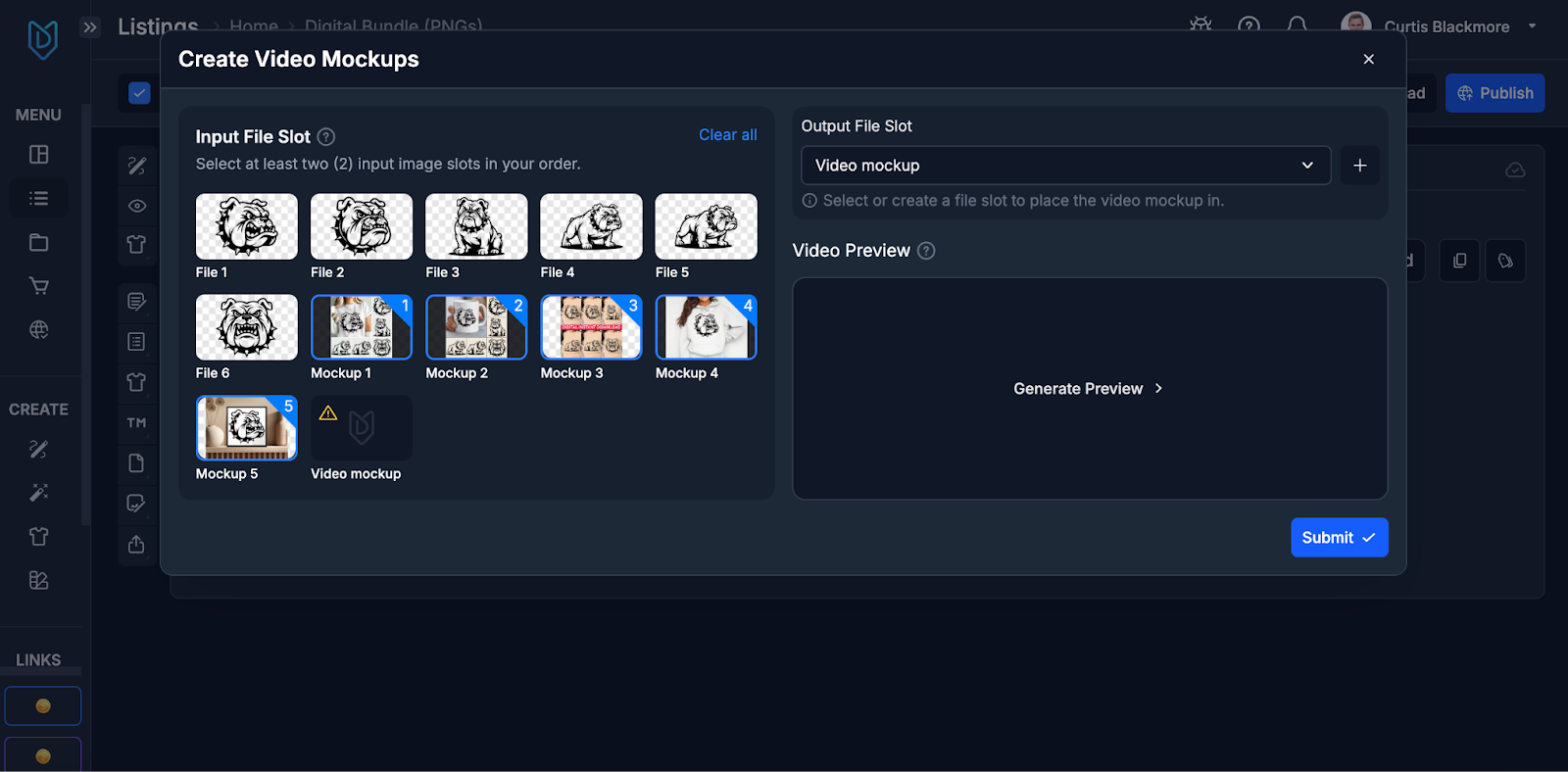
- Generate and save it to your video slot.
Without strong SEO, even the prettiest listing can get buried in Etsy’s search results. MyDesigns uses AI to create titles, tags, and descriptions that help your products get found by the right audience.
Using Vision AI for Optimization
- Select your bundle listing.
- Click “Vision AI.”
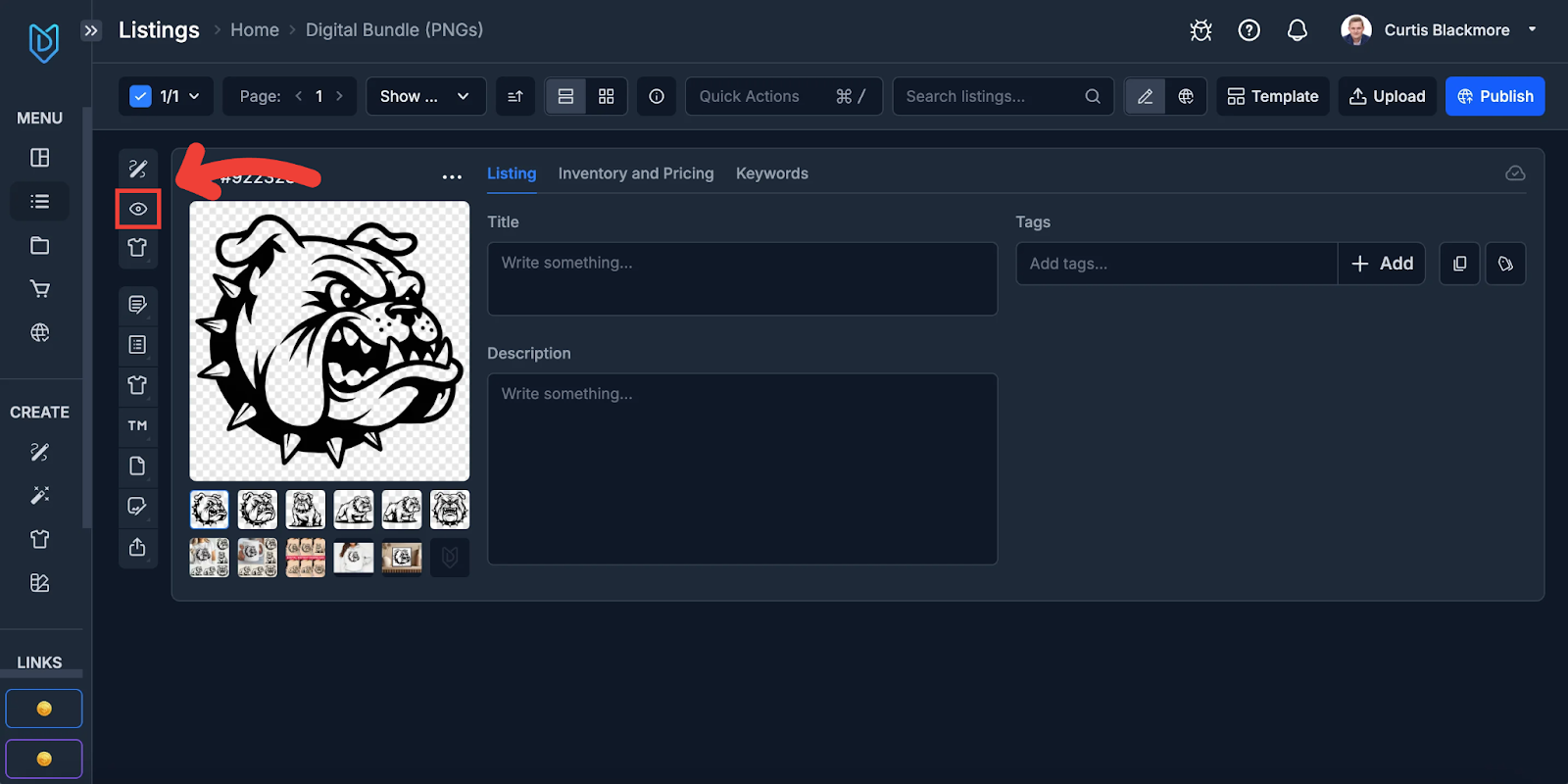
- Choose the following settings.
 Here’s the text you can use with custom instructions:
“Analyze my design and then write the title and tags exactly as shown in the examples below EXCEPT adjust the text where necessary so that it matches what’s on the design.”
Example Title: Bulldog Mascot Png, Bulldog Png, Bulldog Clip Art, Bulldog Head, Bulldog Mom Png, Bulldog Pride, Instant Download
Example Tags: Bulldog png, Bulldog mascot, Bulldog clip art, Bulldog mom, Bull dog png, Bulldog bundle, Go bulldogs, Bulldog mascot png, Bulldog sports, Dog face png, Bulldogs bundle, Bulldog football, Dog breed png” - Click Generate Listing Data and let Vision AI fill in the details. Just like that, your Title and Tags are ready!
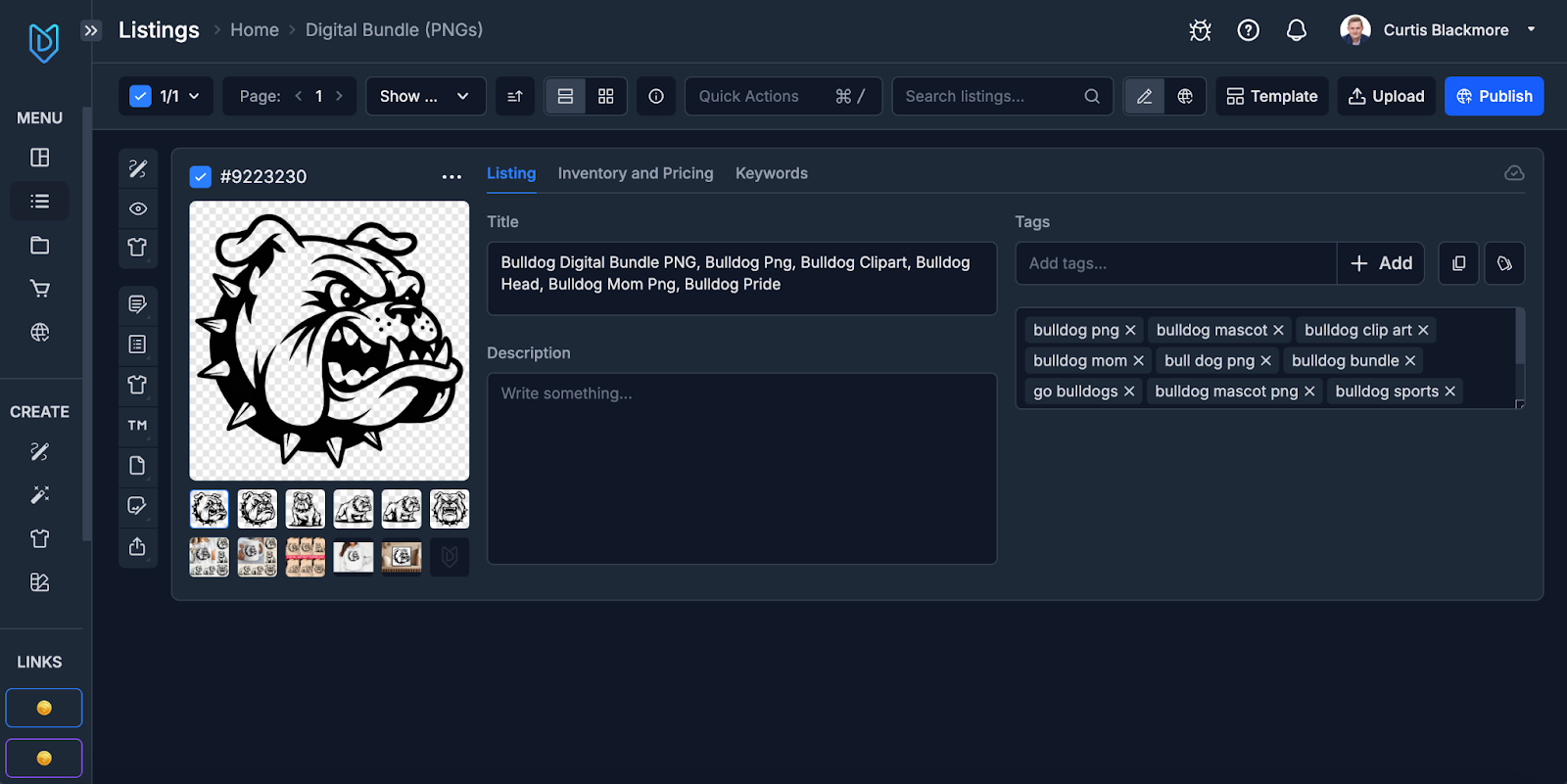
The last step is to add a description. You can choose the following template and tailor it to your listing.
“[listing.title]
Instantly download these beautiful PNG bundle files, perfect for all your DIY projects!
What You’ll Receive:
- 1 PDF file that includes a download link to the high-resolution PNG files (6 total) at 4096 x 4096px (300 DPI)
- Transparent background for ease of use
- Watermark-free
Perfect For Creating:
- Shirts & Bags
- Mugs & Tumblers
- Pillows & Decals
- Printables
- And so much more!
Important Information:
- This is a digital file, not a physical item.
- Commercial use on physical products is permitted.
- You may NOT resell or share the digital file.
- All sales are final. Please contact us if you have any issues with your download.
AI was used in the creation of this item. I provided the creative direction and curated the final result.”
Reviewing and Refining Data
Think of AI as your assistant, not your final editor. Double-check the title for clarity and keywords, make sure the description clearly outlines what’s included (file types, number of designs, usage rights), and confirm all 13 tags are relevant.
Here’s the fun part: Getting your beautiful new bundles live on Etsy.
The Publishing Workflow
- Select the listings you want to publish.
- Click “Publish” and choose Etsy.
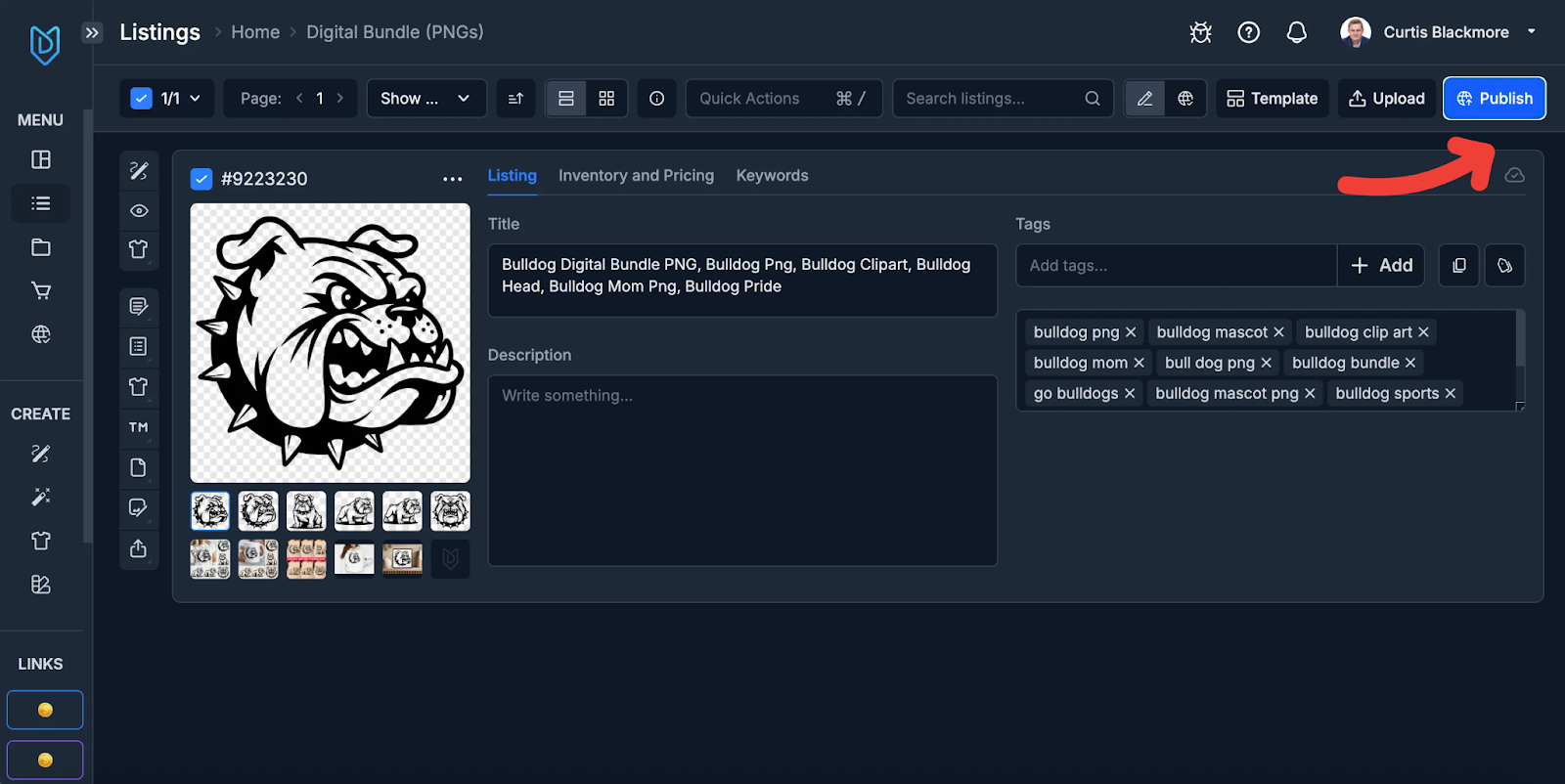
- Select your Etsy shop.
- Under Select Mode, click “Select files to sell”. Here, select the actual files you’re selling, and skip the mockups since the download bundle doesn’t include mockups.
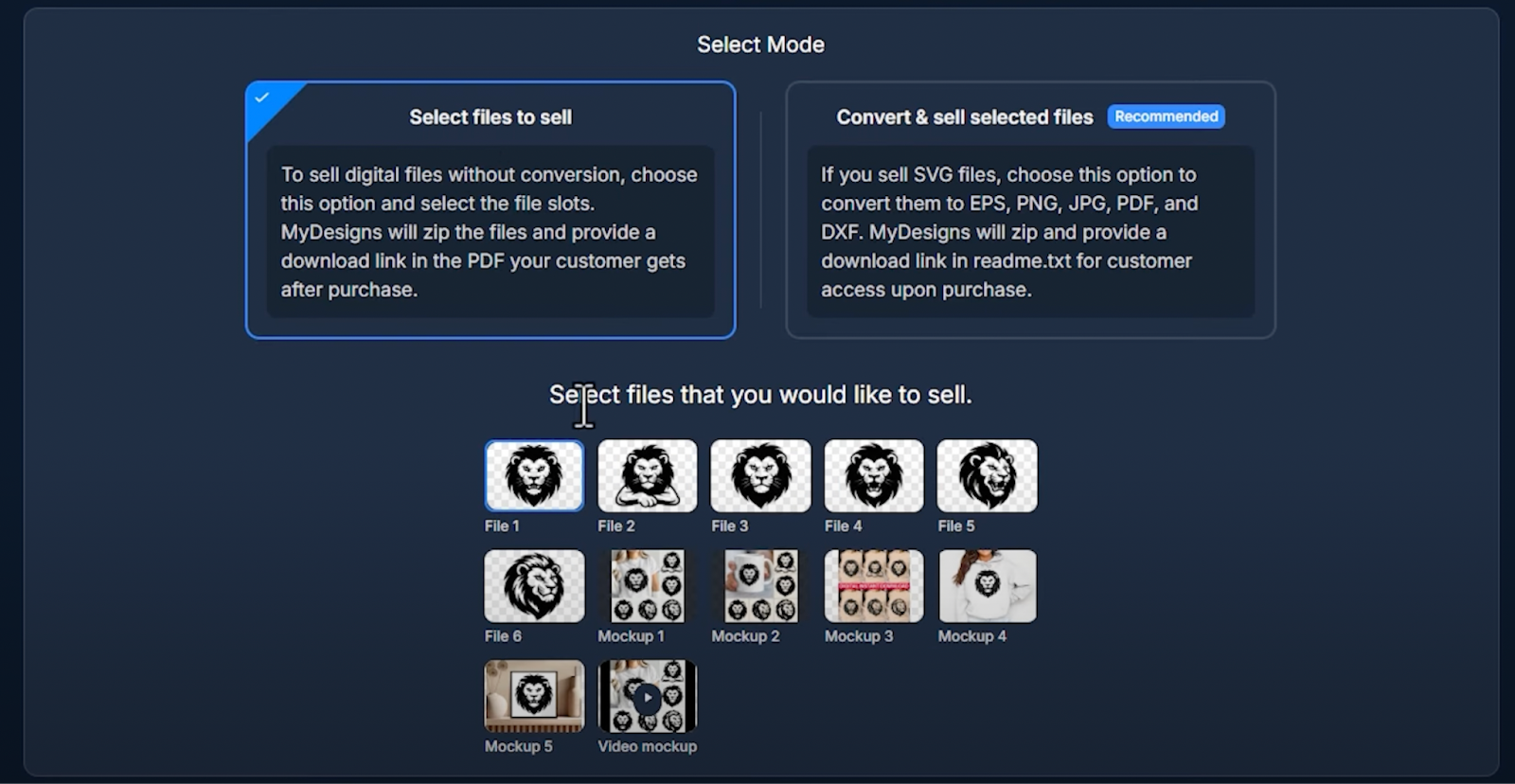
- Select the mockup files.
- Add pricing.
- Review settings and confirm.


Leave a Reply