


Key Takeaways
- Bulk upload is a speed advantage – If you are still listing one product at a time, you are burning hours that should go into catalog growth.
- Etsy CSV works, but barely – It’s fine for simple spreadsheet uploads, but it breaks down fast once images, mockups, and SEO enter the picture.
- The winning workflow is design to listing automation – The best sellers remove the bottleneck between creating products and publishing them live.
- More listings only help if they are optimized – Unique titles, strong mockups, clean tags, and category accuracy matter more than raw upload volume.
Table of Contents
- Why Bulk Uploading to Etsy Matters
- Method 1: How to Bulk Upload Products to Etsy Using CSV
- Method 2: Etsy’s Listing Manager for Bulk Edits
- Method 3: Third-Party Etsy Bulk Upload Tools
- Method 4: Bulk Upload to Etsy with MyDesigns.io (The All-in-One Solution)
- Tips for Optimizing Your Bulk Uploaded Etsy Listings
- Common Mistakes to Avoid When Bulk Uploading to Etsy
- Manual Listing Work Is the Real Bottleneck
If you’ve ever listed products on Etsy one by one, you know the pain. Each listing demands a title, description, tags, images, pricing, shipping details, and category selection. Multiply that by 50, 100, or even 500 products, and you’re staring down days – maybe weeks – of tedious, repetitive work. That’s why learning how to bulk upload products to Etsy is a game-changer for serious sellers.
The average Etsy seller spends 15 to 20 minutes creating a single well-optimized listing. If you have 200 products to upload, that’s roughly 50 to 65 hours of manual work. That’s more than a full work week just on data entry.
But here’s the good news: you don’t have to do it that way. In this guide, we’ll walk you through every method available to bulk upload products to Etsy in 2026 – from Etsy’s built-in CSV tool to powerful third-party platforms that can get 120+ listings live in under 10 minutes. By the end, you’ll know exactly which method fits your workflow and how to scale your Etsy shop fast.

Why Bulk Uploading to Etsy Matters
Time is money – especially when you’re running an online business. Let’s break down why Etsy bulk upload capabilities should be a priority for every seller.
The Time Savings Are Massive
Consider the math. A single listing takes 15-20 minutes when done manually: writing the title, crafting the description, selecting 13 tags, uploading images, setting pricing, and choosing the right category. Now multiply that:
- 50 products: 12-17 hours of manual work
- 100 products: 25-33 hours
- 200 products: 50-66 hours
With bulk upload tools, you can slash those numbers to minutes. That’s time you can reinvest in designing new products, marketing, or simply living your life.
More Listings = More Visibility
Etsy’s search algorithm favors shops with more active listings. Every listing is another chance to appear in search results for a different keyword. Bulk listing on Etsy lets you rapidly expand your catalog and capture more of Etsy’s organic search traffic.
Seasonal Opportunities Won’t Wait
Valentine’s Day, Mother’s Day, Halloween, Christmas – these seasonal windows are short and lucrative. If you’re manually uploading one product at a time, you’ll miss the window. Sellers who can upload multiple products to Etsy quickly are the ones who capitalize on seasonal demand.
Better SEO Coverage
Each listing is an opportunity to rank for different long-tail keywords in Etsy search. More optimized listings mean more surface area in search results. Bulk uploading with proper SEO optimization gives you a massive competitive advantage over sellers who are still copying and pasting one listing at a time.

The sellers who win on Etsy usually move faster than the ones still polishing drafts.
This is exactly where a cleaner workflow starts to matter more than another round of planning.
Method 1: How to Bulk Upload Products to Etsy Using CSV
Etsy offers a native CSV (comma-separated values) upload feature that lets you create or edit multiple listings at once using a spreadsheet. It’s free and built right into your Seller Dashboard.
How It Works
- Download Etsy’s CSV template. Go to your Shop Manager → Settings → Upload Listings via CSV. Download the provided template file.
- Fill in your product data. Open the CSV in Google Sheets or Excel. Each row represents one listing. You’ll fill in columns for title, description, price, quantity, tags, materials, and more.
- Follow Etsy’s formatting rules. Tags must be comma-separated within the cell. Categories use Etsy’s specific taxonomy path. One misplaced comma or incorrect category format can cause the entire upload to fail.
- Upload the CSV. Go back to Shop Manager, upload your completed file, and review the results. Fix any errors Etsy flags and re-upload if needed.
For detailed instructions, check Etsy’s official CSV upload guide.
Limitations of CSV Upload
While the CSV method is free, it has serious drawbacks:
- No image upload. You cannot include product images in the CSV. Every image must be uploaded manually per listing – defeating much of the “bulk” benefit.
- No mockup generation. You need to create all product mockups separately before uploading.
- Error-prone formatting. One wrong character in a cell can cause rows to fail. The error messages aren’t always helpful.
- No AI assistance. You’re writing every title, description, and tag set by hand.
- Steep learning curve. Understanding Etsy’s taxonomy, required fields, and formatting rules takes significant time.
Best for: Sellers making simple text-based edits to existing listings, or technically savvy sellers comfortable with spreadsheet formatting.
Method 2: Etsy’s Listing Manager for Bulk Edits
Etsy’s Listing Manager is a built-in tool within the Shop Manager that allows you to edit multiple existing listings at once. Think of it as a spreadsheet view of your current inventory.
What You Can Do
With the Listing Manager, you can select multiple listings and bulk-edit:
- Prices and sale prices
- Quantities and SKUs
- Tags (add or remove across multiple listings)
- Shipping profiles
- Renewal options
This is useful when you need to run a sale, adjust pricing, update tags seasonally, or change a shipping profile across your entire shop.
Limitations
The key limitation is significant: Listing Manager only works with existing listings. You cannot create new products through this tool. It’s purely for editing what’s already in your shop.
Additionally, you can’t bulk-edit descriptions or titles – those still need to be changed one at a time. And like the CSV method, there’s no mockup generation, no AI-powered content, and no multi-platform support.
Best for: Updating prices, quantities, or tags across your existing catalog. Not useful for uploading new products.
Method 3: Third-Party Etsy Bulk Upload Tools
When Etsy’s built-in tools fall short, third-party platforms step in. Several Etsy bulk listing tools have emerged to help sellers manage large catalogs more efficiently.
What to Look For in a Bulk Upload Tool
Not all tools are created equal. Here are the key features that separate the great tools from the mediocre ones:
- Mockup generation: Can the tool automatically create professional product mockups from your design files? This alone can save hours per product.
- AI-powered descriptions: Does it use AI to write SEO-optimized titles, descriptions, and tags? Manual copywriting for hundreds of products is a bottleneck.
- Multi-platform publishing: Can you upload to Etsy, Shopify, WooCommerce, and other marketplaces from one place?
- Batch processing: How many products can you process at once? Some tools cap at 10-20; others handle hundreds.
- Image management: Does the tool handle images automatically, or do you still need to upload them one by one?
Popular Options
Some tools in this space include Vela (for cross-platform listing management), Productsup (enterprise-level), and various Etsy-specific listing tools. Many of these focus on managing existing inventory rather than creating new listings from scratch.
However, if you’re a print-on-demand seller or digital product creator, you need something more specialized – a tool that handles the entire workflow from design file to published listing, including mockup creation and SEO optimization.
That’s where Etsy product upload automation gets truly powerful, and why we built MyDesigns.io.
You do not need more theory here. You need a workflow that turns ideas into listings while the opportunity is still alive.
The advantage usually goes to the sellers who can create, organize, and publish without getting buried in manual work.
Method 4: Bulk Upload to Etsy with MyDesigns.io (The All-in-One Solution)
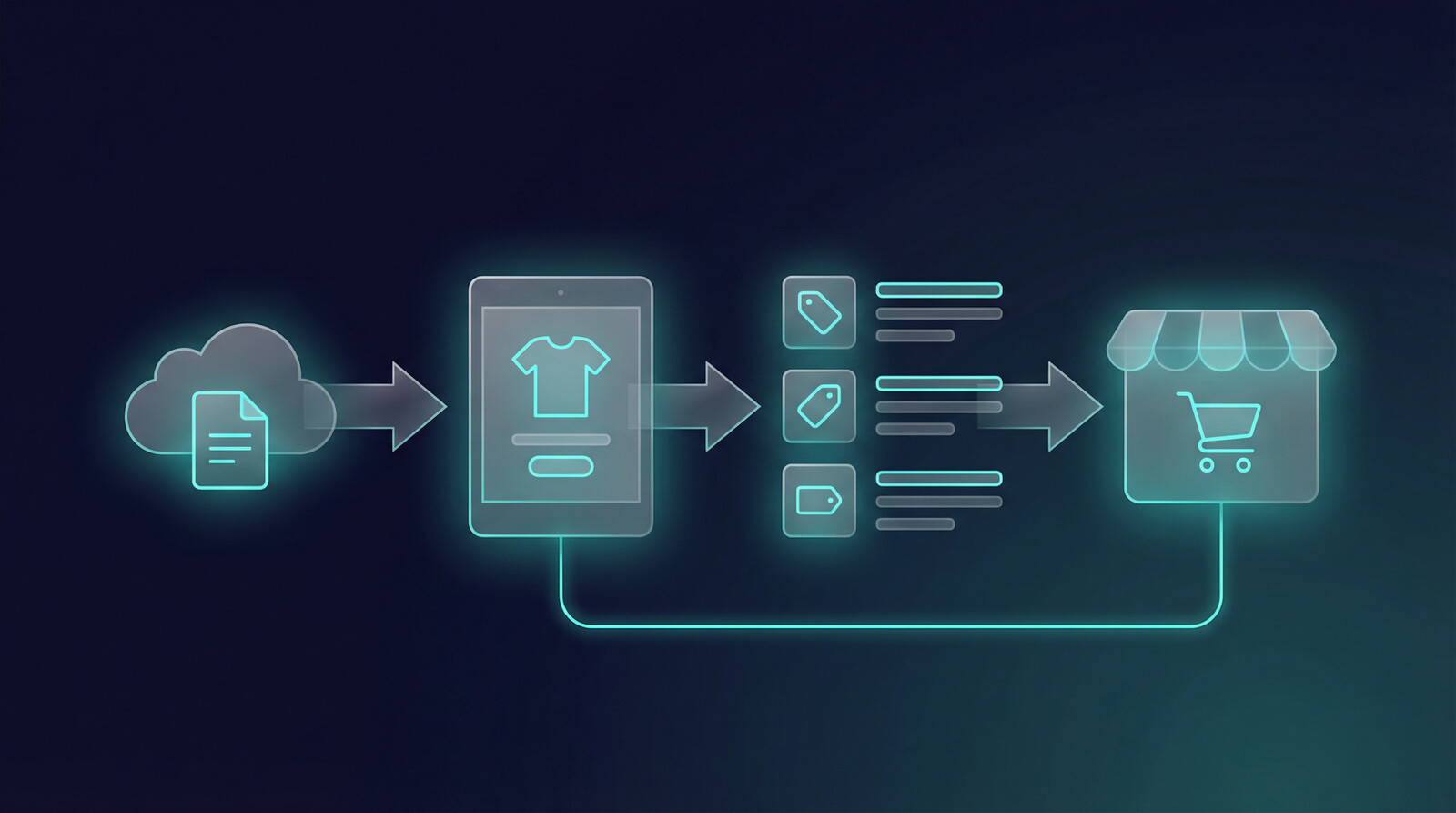
If you want the fastest, most automated way to bulk upload products to Etsy, MyDesigns.io was built specifically for this workflow. It takes you from raw design files to fully published, SEO-optimized Etsy listings in minutes – not hours or days.
Here’s exactly how it works, step by step.
Step 1: Upload Your Design Files
Start by dragging and dropping your design files into MyDesigns. You can upload an entire folder of designs at once – PNG, SVG, or any standard format.
Have 120 designs ready for your new collection? Drop them all in. There’s no file limit on how many you can process in a single batch. The interface handles bulk uploads natively, so you’re not clicking “upload” 120 times.
Step 2: AI Generates Professional Mockups
This is where MyDesigns starts saving you serious time. Once your designs are uploaded, the AI mockup engine automatically places each design onto professional product mockups.
Each design can be applied to 20+ mockup styles – t-shirts, hoodies, mugs, tote bags, phone cases, wall art, and more. That means 120 designs × 20 styles = 2,400 ready-to-sell mockup images, generated automatically.
No Photoshop. No mockup templates. No manual placement. The AI handles perspective, sizing, and positioning so every mockup looks professional and marketplace-ready.
Step 3: Vision AI Writes Your Listings
Here’s where the MyDesigns Etsy bulk upload workflow really shines. The platform’s Vision AI actually looks at each design and automatically generates:
- SEO-optimized titles tailored for Etsy search
- Compelling descriptions that highlight features and appeal to buyers
- All 13 Etsy tags researched for maximum search visibility
The AI doesn’t just stuff keywords – it follows Etsy’s latest 2026 guidelines for clear, descriptive titles and naturally written descriptions. Every listing is unique, so you never get penalized for duplicate content.
Step 4: Review and Customize
Automation is great, but you stay in control. Before anything goes live, you can:
- Edit any title, description, or tag
- Select which mockup images to use per listing
- Adjust pricing for individual products or in bulk
- Choose categories and shipping profiles
- Preview exactly how each listing will appear on Etsy
Think of it as AI doing 95% of the work, and you handling the final 5% of personal touches.
Step 5: One-Click Publish to Etsy (and Beyond)
When you’re satisfied with your listings, hit publish. MyDesigns sends everything directly to your Etsy shop – titles, descriptions, tags, images, pricing, categories – all at once.
But it doesn’t stop at Etsy. With the same batch of products, you can also publish to:
- Shopify
- WooCommerce
- TikTok Shop
- More platforms coming soon
The result? What used to take 25+ hours of manual work now takes under 10 minutes. 120 products, fully optimized, with professional mockups, live on Etsy.
Why Sellers Choose MyDesigns for Etsy Bulk Upload
- Speed: 120+ products uploaded in under 10 minutes
- Quality: AI-generated mockups that actually look professional
- SEO: Vision AI writes optimized content that ranks in Etsy search
- Multi-platform: One workflow, multiple marketplaces
- Free tier: Start for free – no credit card required
Ready to try it? Start your free MyDesigns account here and see how fast you can scale your Etsy shop.

Tips for Optimizing Your Bulk Uploaded Etsy Listings
Bulk uploading gets your products live fast, but optimization is what gets them selling. Here’s how to make sure your bulk-uploaded listings perform their best.
Follow Etsy’s 2026 Title Guidelines
Etsy has shifted toward recommending shorter, clearer titles rather than keyword-stuffed ones. Instead of cramming every keyword into your title, focus on:
- Leading with what the product actually is
- Including 2-3 relevant keywords naturally
- Keeping it readable – would a human understand this title at a glance?
Good: “Minimalist Mountain T-Shirt – Hiking Gift for Nature Lovers”
Bad: “Shirt T-Shirt Tee Mountain Hiking Nature Outdoor Gift Men Women Unisex”
Max Out Your 13 Tags
Every Etsy listing gets 13 tags. Use all of them. Mix broad terms (“graphic tee”) with long-tail phrases (“camping gift for dad”) and seasonal keywords (“summer hiking shirt”). Don’t repeat words already in your title – Etsy considers title and tags together for search.
Write Descriptions That Convert
Your description should do two things: help with Etsy SEO and convince the buyer to purchase. Lead with the most important information. Use bullet points for specs (size, material, care instructions). Include a call to action.
Invest in Image Quality
Professional mockups dramatically outperform flat design images. Listings with lifestyle-style mockups see higher click-through rates and conversion rates. If you’re using an Etsy listing tool like MyDesigns, this is handled automatically.
Price Strategically at Scale
When uploading hundreds of products, set up a pricing strategy beforehand. Consider your costs, marketplace fees, and competitive pricing. Having a formula (e.g., cost × 3 for retail price) makes bulk pricing decisions fast and consistent.
Do Keyword Research
Don’t guess at tags. Use tools like eRank, Marmalead, or Etsy’s own search bar autocomplete to find keywords buyers actually search for. The best tags are ones with decent search volume but lower competition.
Once you know what angle you want to pursue, speed matters more than another hour of hesitation.
If you want this strategy to actually turn into output, the workflow after the idea matters just as much as the idea itself.
Common Mistakes to Avoid When Bulk Uploading to Etsy
Bulk uploading is powerful, but it can backfire if you’re not careful. Avoid these common pitfalls:
Duplicate Titles and Descriptions
This is the #1 mistake. If every listing has the same description with just the color changed, Etsy’s algorithm may flag your shop for duplicate content. Each listing needs unique, descriptive copy. Tools with AI-generated content (like MyDesigns) solve this automatically by creating unique descriptions for each product.
Ignoring Category Requirements
Etsy has specific category taxonomies, and choosing the wrong one can hurt your search visibility. A “graphic t-shirt” belongs in Clothing → Shirts & Tees, not in Art & Collectibles. When bulk uploading, double-check that your category mappings are correct.
Not Optimizing for Mobile
Over 60% of Etsy traffic comes from mobile devices. Your first listing image needs to be eye-catching on a small screen. Titles should front-load the most important words. Don’t bury key details deep in long descriptions – mobile users skim.
Skipping the Test Batch
Always test with a small batch first. Upload 5-10 products before sending 200. Check that images look right, descriptions render correctly, tags are populated, and categories are accurate. It’s much easier to fix issues in a batch of 5 than a batch of 500.
Not Reviewing AI-Generated Content
If you’re using AI for titles and descriptions, always do a quick review pass. AI is excellent at producing a solid first draft, but your personal touch and brand voice matter. Spend a few minutes scanning for accuracy and tone.
Manual Listing Work Is the Real Bottleneck
You now have a complete picture of every method to bulk upload products to Etsy in 2026:
- Etsy CSV Upload – Free but limited. No images, no AI, error-prone formatting.
- Etsy Listing Manager – Good for editing existing listings in bulk. Can’t create new products.
- Third-Party Tools – Various options for listing management, but most lack mockup generation and AI content.
- MyDesigns.io – The all-in-one solution: AI mockups, AI-written SEO content, multi-platform publishing, and 120+ products uploaded in minutes.
The sellers who scale fastest are the ones who remove the bottleneck of manual listing creation. Whether you choose the CSV method for a small batch or MyDesigns for full automation, the key is to stop uploading one product at a time.
Ready to transform your workflow? Try MyDesigns free today – no credit card required – and see how fast you can turn your designs into live Etsy listings. Your next 120 products are just a few clicks away.
Frequently Asked Questions
+ Can I bulk upload to Etsy for free?
Yes. Etsy’s built-in CSV upload feature is completely free. However, it’s limited – you can’t upload images via CSV, there’s no AI assistance, and the formatting is error-prone. For a more powerful free option, MyDesigns.io offers a free tier that includes mockup generation and AI-powered listings.
+ How many products can I upload to Etsy at once?
Using Etsy’s CSV tool, there are file size limits that practically cap you around a few hundred listings per upload (depending on data per row). With MyDesigns, you can process 120+ products per batch with full mockups, descriptions, and images – and run multiple batches back to back.
+ Does bulk uploading affect my Etsy SEO?
No – as long as your listings are properly optimized. Etsy doesn’t penalize you for uploading many listings at once. What matters is the quality of each listing: unique titles, relevant tags, good images, and proper categories. Poorly optimized bulk uploads can hurt you, but well-optimized ones give you a significant SEO advantage.
+ Can I bulk upload to Etsy and Shopify at the same time?
Not with Etsy’s native tools. But with MyDesigns, absolutely. You can create a single batch of products and publish them to Etsy, Shopify, WooCommerce, and TikTok Shop simultaneously. One workflow, multiple marketplaces – saving you from duplicating effort across platforms.
+ What file formats does MyDesigns accept for bulk upload?
MyDesigns accepts PNG, SVG, JPG, and other standard design formats. You can drag and drop individual files or entire folders. The platform automatically processes them and generates mockups in the appropriate sizes for each marketplace.


Leave a Reply